
Shipping labels and tracking
emails in your panel
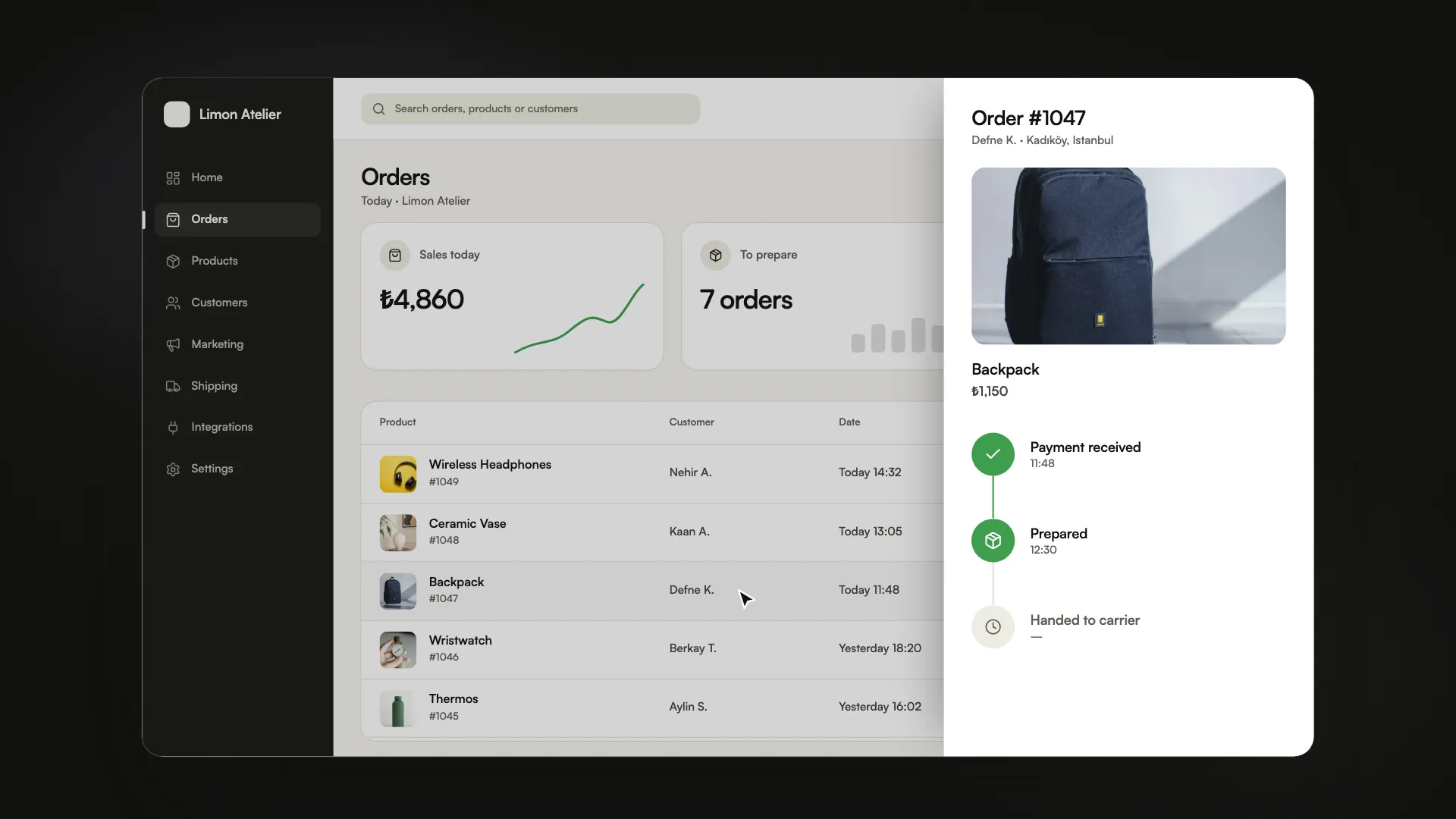
Create the shipping label right from the order. Once the tracking number is in, your customer gets an email.
Three steps to shipping
Connect a shipping account
From your panel, connect the shipping integration that reaches many carriers through one account.
Create the label
Open the order, pick the carrier and print the label.
Your customer stays informed
The tracking number reaches your customer by email, in your store's language.
What's ready in shipping?
What you can do from the orders screen today. The carriers you can connect are on the Integrations page.
Shipping label
From inside the order, with your connected shipping account.
Tracking email
Goes to your customer on its own once the tracking number is added.
Your own arrangement
Shipped another way? Add the tracking number to the order and the email still goes out.
Shipping fee and free shipping
Set a flat shipping fee and a free-shipping threshold in the panel; above it, shipping is free.
Packing mode
Tick items off a pick list, print the label and ship orders in bulk.
Delivery day and in-store pickup
Customers can choose a delivery day. You can also offer local delivery to chosen provinces or in-store pickup.
Your store ships to addresses in its own country.
Common questions.
Can't find your answer? Message us on WhatsApp. A real person will reply.
Ask on WhatsAppHow do I ship orders?
Connect your shipping account in your panel and print the label from inside the order. Once the tracking number is added, your customer gets it by email in your store's language.
What do automations cover?
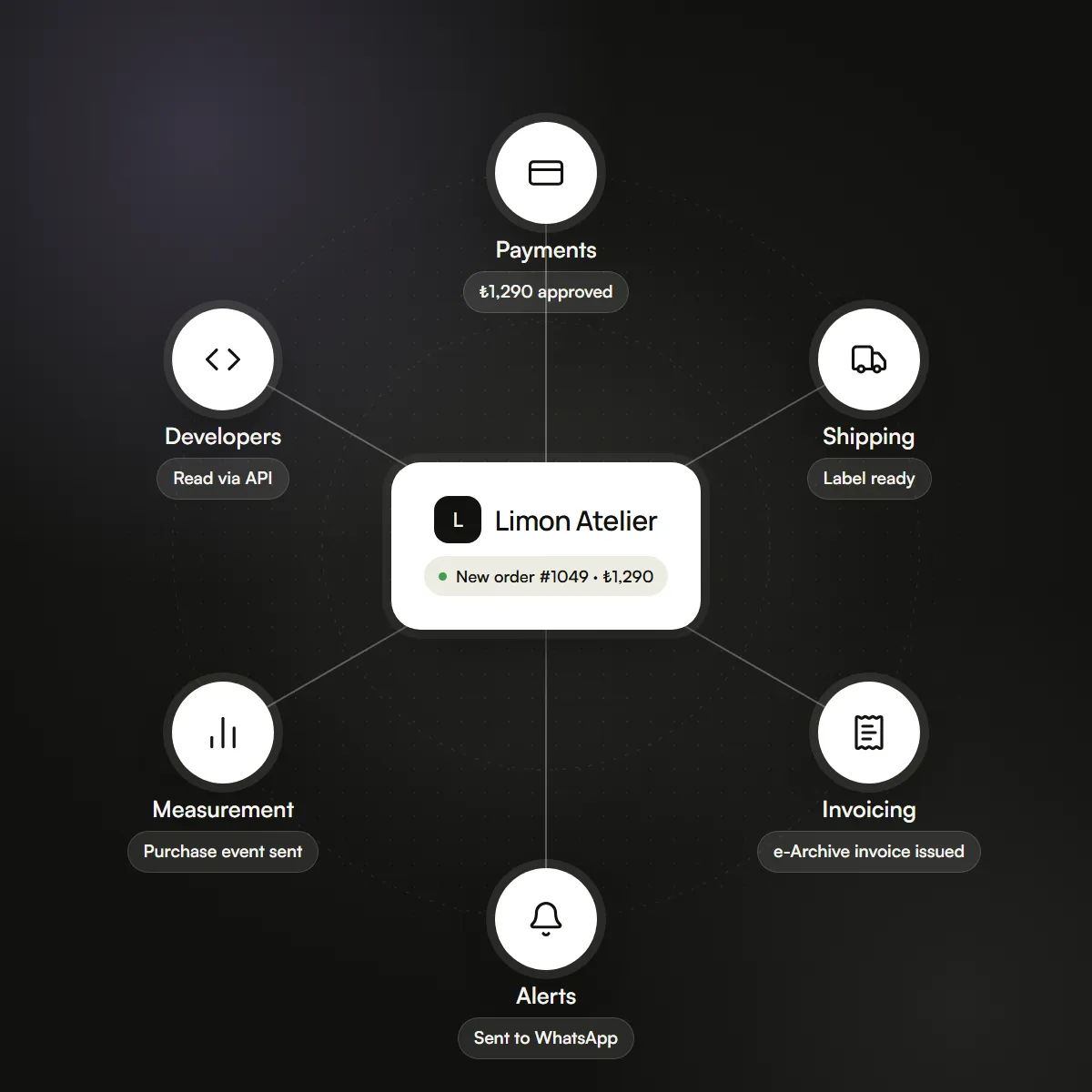
Low-stock alerts, abandoned-cart reminders, shipping tracking emails and order notifications are ready. You can connect an event to an SMS, WhatsApp message, email or webhook.